
Refunds
When a shop gives you money back, the refund lands in your account as income. But it isn’t really income: it undoes part of a purchase. Linking the refund to the original purchase tells MoneyMatter to take it off your spending instead of counting it as money earned.
What a refund link does
Section titled “What a refund link does”A refund link connects a refund to the transaction it reverses. Usually that’s an income refunding an expense. It works the other way round too: an expense that pays back money you received, for example returning part of a payment a customer made.
- It doesn’t change any balance. The refund already changed your account balance when you recorded it. The link doesn’t move money again.
- It changes your stats. The refunded amount comes off the original purchase’s spending, and doesn’t count as income. See How refunds affect your stats.
Once linked, both transactions show a small circular-arrow icon in the transaction list. Hover over it to see Refund.
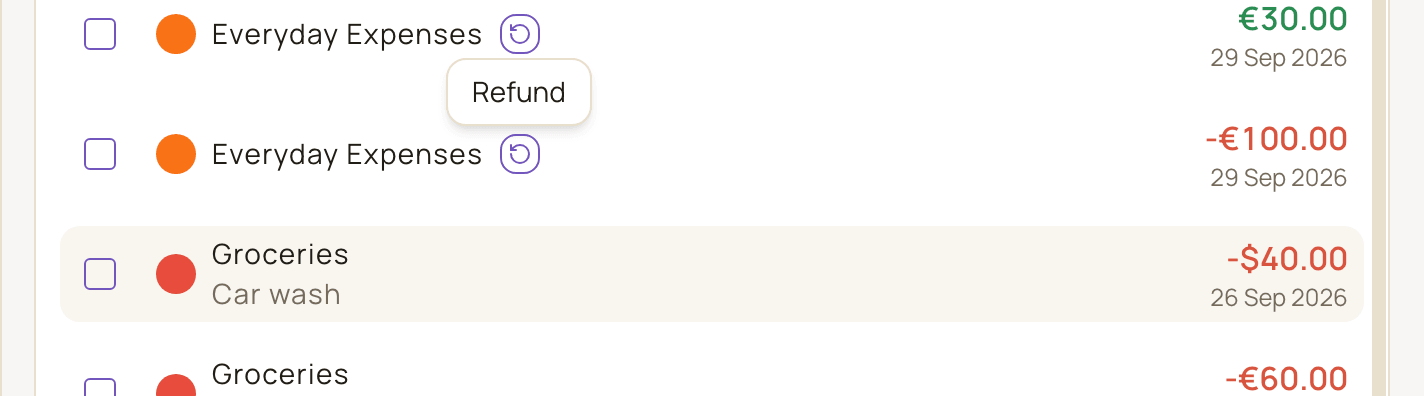
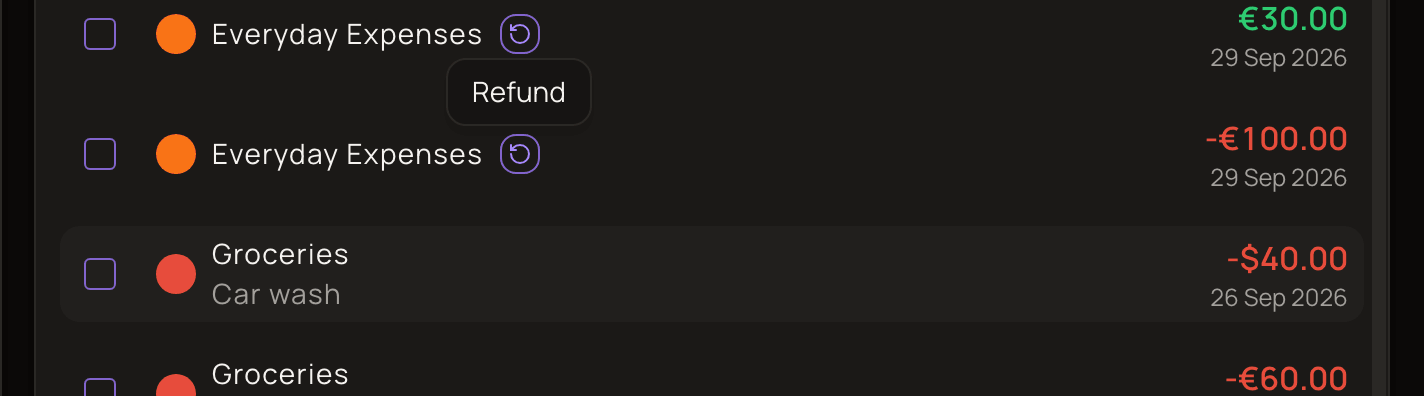
To find refunds in the list, open the Filters menu above it and add Refunds. Choose Only to see linked refunds and their purchases, or Exclude to hide them. See Search and filter.
Link a refund
Section titled “Link a refund”You can start from either transaction. Both ways use the Link refund button under More options in the transaction dialog. On a computer, More options is the right-hand column; on a phone, it’s a button at the bottom of the dialog.
Start from the refund
Section titled “Start from the refund”- Open the refund in the transaction list, or add it with Add transaction.
- Under More options, click Link refund.
- Make sure Refunds a transaction is selected. It’s already selected for an income or a new transaction. This entry is the refund, and you pick the one transaction it refunds.
- Select the original purchase in the list.
- Click Save.
- Back in the transaction dialog, Linked refunds shows your pick. Click Edit (the save button at the bottom of the dialog), or Create for a new transaction, to save the link.
Start from the purchase
Section titled “Start from the purchase”- Open the original purchase in the transaction list.
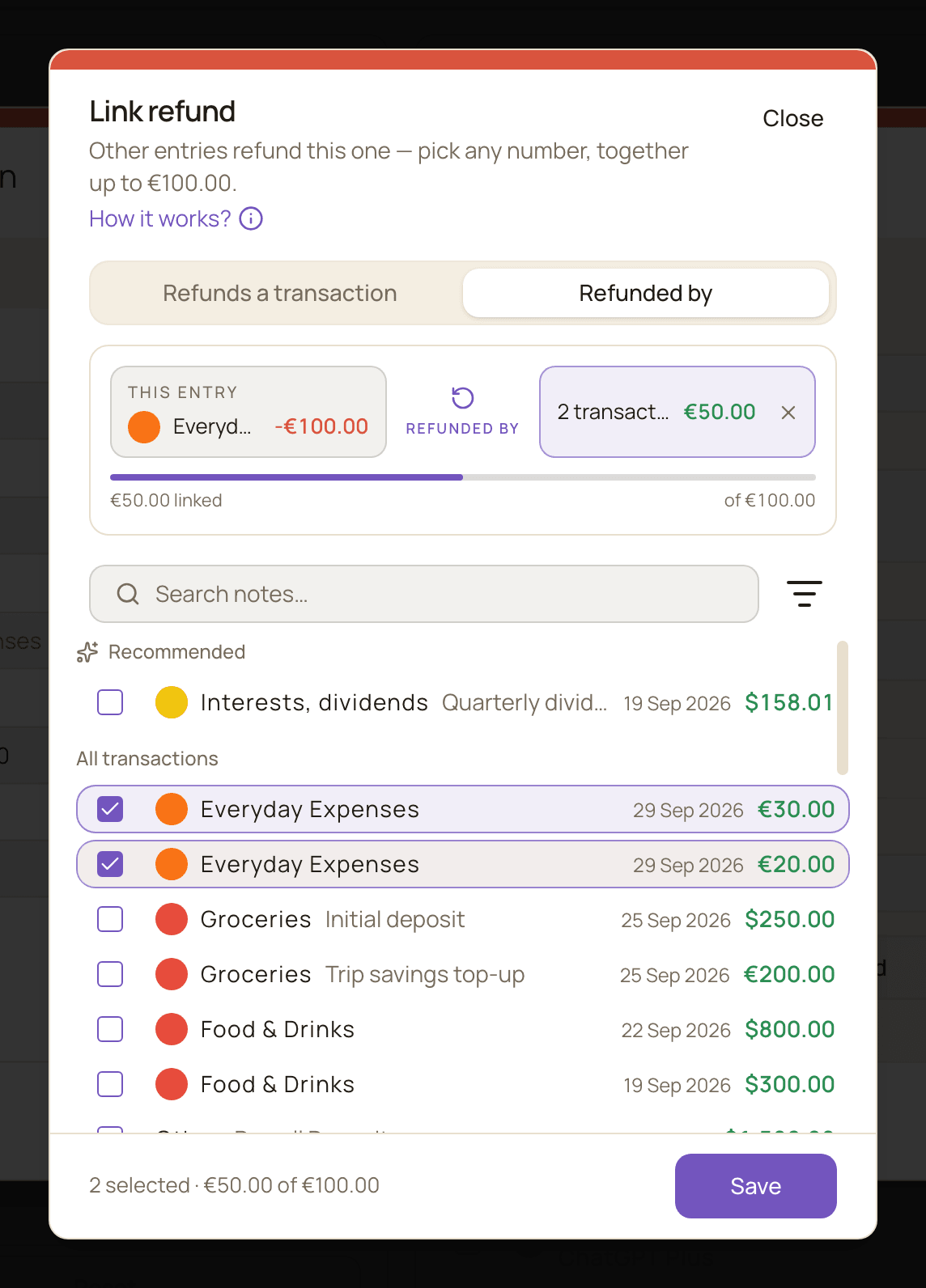
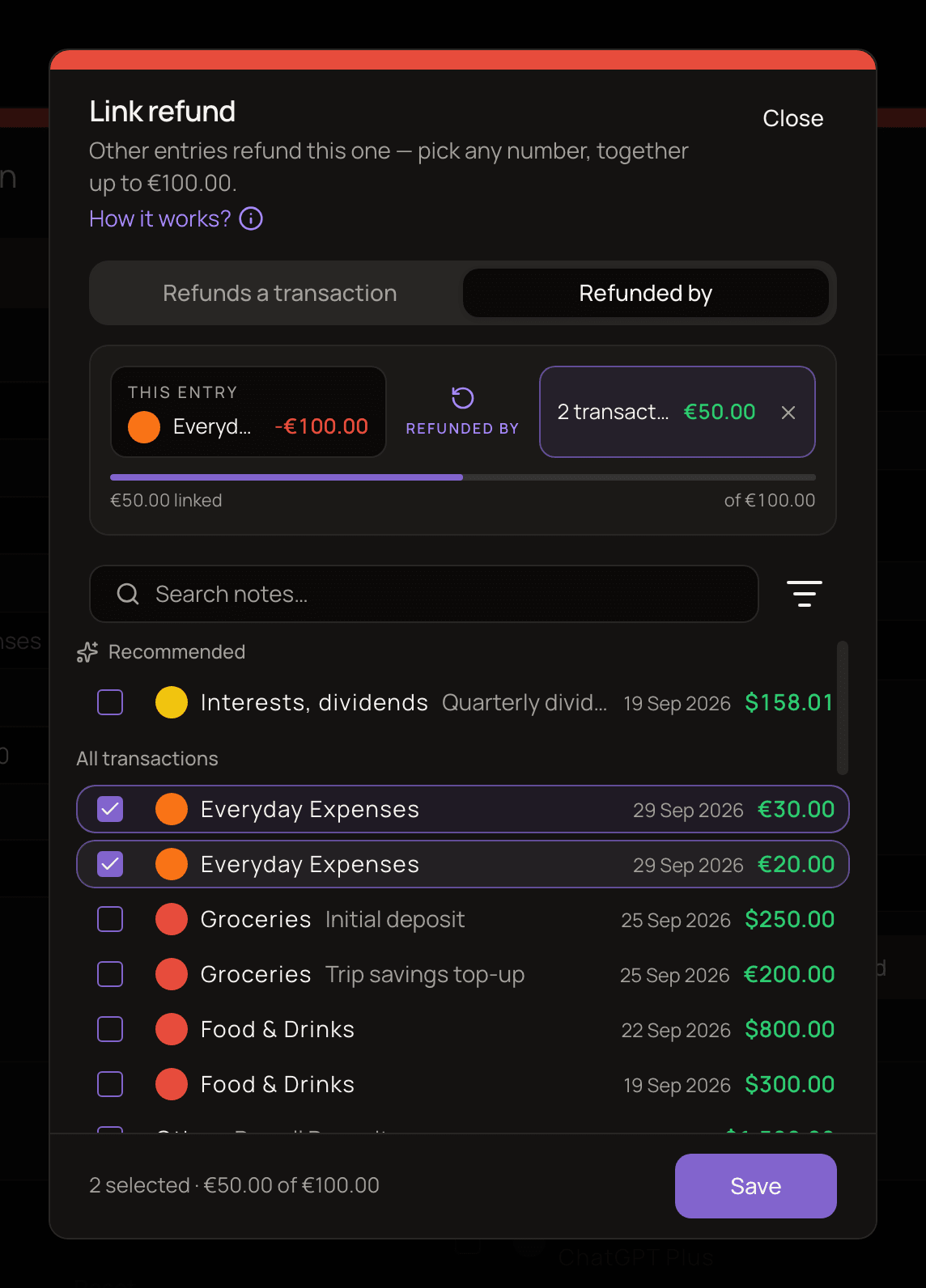
- Under More options, click Link refund. For a saved expense, the dialog opens on Refunded by.
- Select every transaction that refunds this one. You can pick several. The footer keeps a running total, for example “2 selected · €50.00 of €100.00”.
- Click Save.
- Back in the transaction dialog, click Edit to save the links.
Refunded by is turned off while you’re adding a new transaction. It becomes available once the transaction is saved.
Find the right transaction
Section titled “Find the right transaction”- Recommended at the top suggests up to 5 transactions from the last six months whose amount is within 50 of this one’s in your base currency, for example within 50 EUR either way if your base currency is EUR.
- All transactions lists the rest. Use the Search notes… box, or Filters to narrow it by From date, To date, Amount from (gte) and To (lte).
The list only shows transactions of the opposite type, from any of your accounts. Transfers, planned transactions and transactions that are already a refund of something else aren’t listed. A purchase that already has a partial refund stays in the list, so you can add more refunds to it.
Partial and multiple refunds
Section titled “Partial and multiple refunds”A purchase can have several refunds, but each refund belongs to one purchase. For example, you order three items for 100 EUR and return two of them separately, getting 20 EUR and 30 EUR back. Link both refunds to the same purchase, and 50 EUR of it is treated as refunded.
When the purchase and its refunds use the same currency, the refunds together can’t be more than the purchase. If your selection goes over, the footer says it “exceeds the original” and Save is turned off. In the same way, you can’t link a refund to a purchase that’s smaller than the refund.
When the currencies differ, there’s no limit. Each side is converted at the exchange rate for its own date, so a genuine refund can be worth more than the purchase once converted. The dialog only warns you. Refunds in a different currency also don’t count toward the limit for same-currency refunds.
Refund part of a split purchase
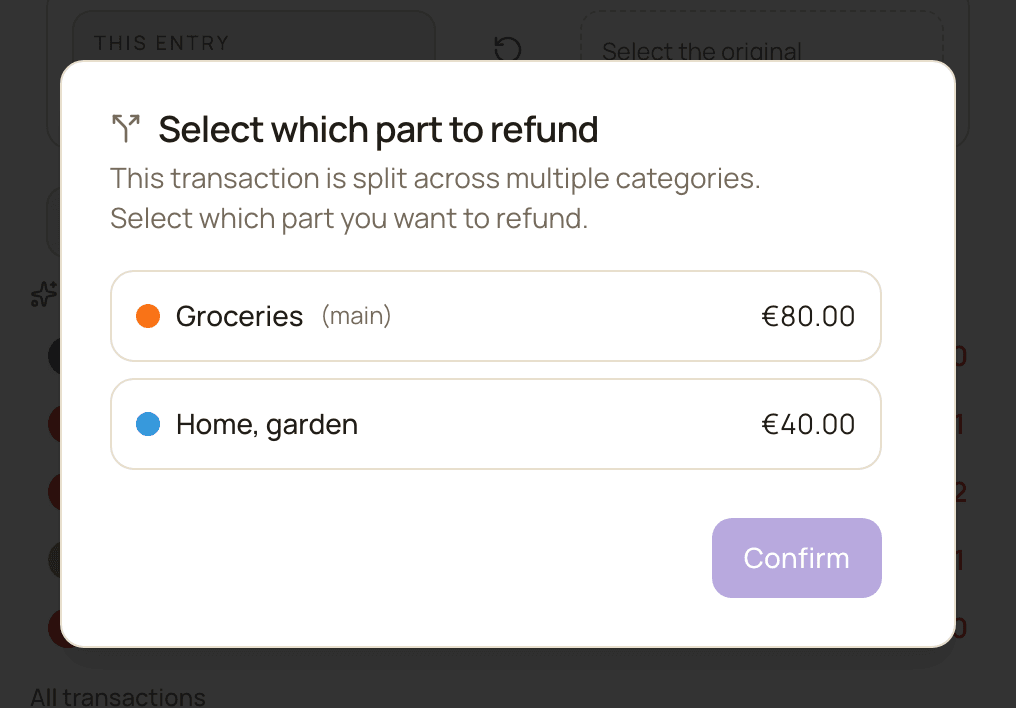
Section titled “Refund part of a split purchase”If the purchase is split across categories, you can say which part the refund is for. For example, a supermarket receipt split between Groceries and Household, where you returned a household item.
- Open the refund, click Link refund and keep Refunds a transaction selected.
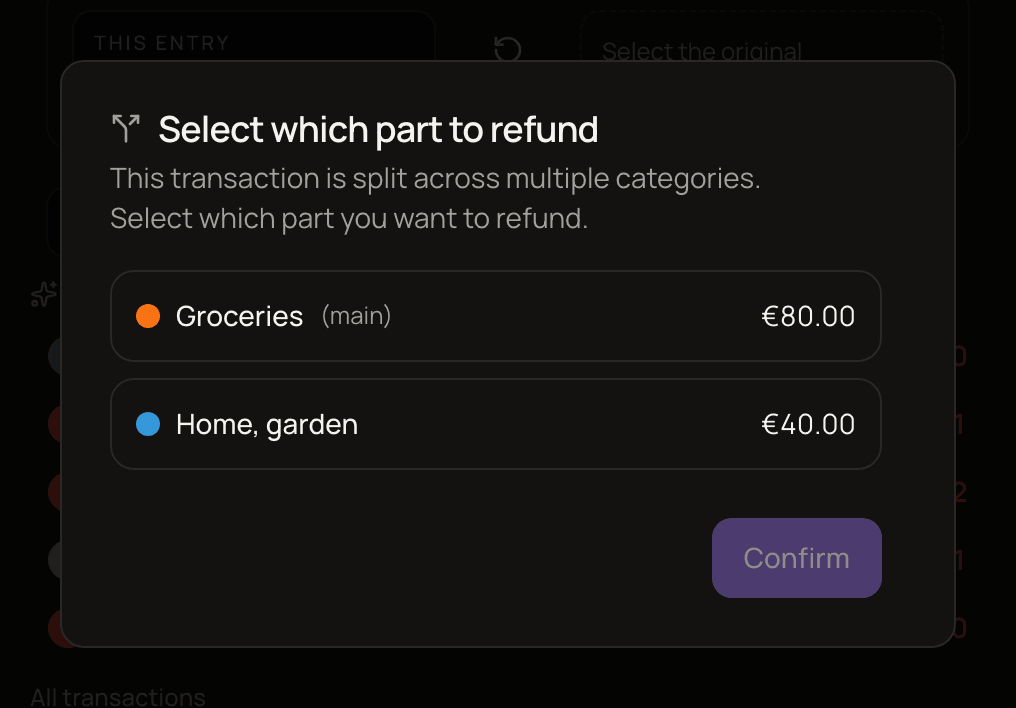
- Select the split purchase. Select which part to refund opens.
- Pick the main category, marked (main) and shown with the amount left for it after the splits, or one of the splits.
- Click Confirm, then Save, then Edit in the transaction dialog.
When both are in the same currency, parts smaller than your refund are turned off. If you picked a split, the linked row shows “Refunds category portion” below it.
Refunded by can’t target a single split: refunds linked from the purchase always apply to the whole purchase. To refund one part, start from the refund.
If you edit the purchase’s splits later:
- You can’t lower a refunded split below what’s been refunded. You’ll see “This split has refunds totaling … You cannot reduce it below the refunded amount. To reduce further, first unlink the refunds.”
- If you remove a refunded split, or remove all splits, its refunds move to the purchase as a whole.
Rules for refund links
Section titled “Rules for refund links”- Opposite types. An income refunds an expense, and an expense refunds an income.
- Any account. The refund can land on a different account from the purchase, for example a refund paid back to a different card.
- No transfers. Neither side can be a transfer, including Out of Wallet ones. The Link refund button doesn’t appear on the Transfer tab.
- No planned transactions.
- No refunds of refunds. A transaction that is itself a refund can’t be refunded.
- A refund belongs to one transaction. A transaction that is already a refund can’t be linked as a refund again. In the Link refund dialog, switching between Refunds a transaction and Refunded by replaces the links you had on this transaction.
- Changing the type removes the link. If you switch a transaction between Expense and Income, its refund links are cleared and you’ll see “Refund link removed because the transaction type changed.” The links are removed when you save.
How refunds affect your stats
Section titled “How refunds affect your stats”A linked refund is treated as money you never really spent, rather than money you earned.
Spending by category. The refund comes off the category of the original purchase, or of the split you picked. The refund’s own category is ignored. Say you spend 200 on a laptop under Electronics, then get 50 back as income filed under Other. Electronics shows 150 spent, and Other shows no income from it.
Cash flow. On the Cash Flow page in Analytics and the Cash Flow widget on the dashboard, the refund lowers your expenses instead of raising your income. Your net result is the same either way; only where the money shows up changes. You pay 100 EUR on 10 January and get 30 EUR back on 20 January: January shows 70 EUR of expenses, no income, and a net of −70 EUR.
Refunds in a later month. In Cash Flow, the reduction lands in the month the money came back. You pay 100 EUR in January and get 30 EUR back on 5 February. If you view January and February together, January shows 100 EUR of expenses, February shows −30 EUR of expenses, and the two months together show 70 EUR. If you view February on its own, the purchase is outside the period, so the 30 EUR shows up as ordinary income.
Category charts use the purchase’s period. In spending-by-category charts, such as the Expenses Structure widget on the dashboard, a refund is always taken off the period that contains the original purchase, even if the money came back later. In the example above, January shows 70 EUR for the category and February shows no change. This is why Cash Flow and category charts can disagree for a refund that crosses months.
Category charts never go below zero. A category’s spending stops at zero, and a refund only reduces a category that has spending in the period shown.
For more on how each report is calculated, see How stats are calculated.
Unlink or delete a refund
Section titled “Unlink or delete a refund”To unlink, open either transaction, click the ✕ (Unlink refund) on the row under Linked refunds, then click Edit. Both transactions stay, and any other refunds of the same purchase stay linked.
To delete, delete either transaction as usual. Its refund links are removed automatically, and the confirmation dialog says so. If you delete a purchase, its refunds become ordinary income in your stats.
Refunds vs transfers
Section titled “Refunds vs transfers”A refund is money coming back from a purchase. A transfer is money moving between your own accounts. The two don’t mix: a transfer can’t be linked as a refund, and transactions linked as refunds aren’t offered when you look for the other side of a transfer. If money you moved to another account came back, that’s a transfer, see How transfers work.