
What is MoneyMatter?
MoneyMatter is a personal finance app that shows you where your money is and where it goes. You add your accounts and transactions, by hand or synced from your bank, and MoneyMatter turns them into balances, a dashboard and reports in one currency of your choice.
It runs in your browser on a computer or a phone. On a phone, a bar at the bottom has icons for Dashboard, Accounts, Transactions and Analytics, and the menu button opens everything else. You can use the app in English, Ukrainian, Spanish, Indonesian or Russian. See General settings.
Accounts
Section titled “Accounts”- Manual accounts for anything you want to track: cash, a current account, a credit card, savings and more. Each one has its own currency and balance, and you record its transactions yourself. See Create an account.
- Bank-synced accounts bring transactions in from your bank automatically. MoneyMatter connects through Monobank, Enable Banking, SimpleFIN, Lunch Flow and Walutomat. This is part of the Plus plan. See Bank connections.
- Account groups keep related accounts together in the sidebar. See Account groups.
- Vehicles, valued automatically so your net worth includes them. See Vehicles.
Transactions
Section titled “Transactions”Every transaction is an Expense, an Income or a Transfer. You can describe each one in as much detail as you like:
- Categories with subcategories. New accounts come with a starter set you can edit. See Categories.
- Tags, up to 20 per transaction. See Tags.
- Payees, so you know who you paid. Picking a payee can fill in the category you usually use for it. See Payees.
- Splits, when one payment covers several categories, such as groceries and household items on one receipt. See Split a transaction.
- Notes, locations and file attachments.
You can also bundle related transactions into Groups from the Transactions page. See Search and filter.
Transfers and refunds
Section titled “Transfers and refunds”- Transfers move money between your own accounts. They don’t count as spending or income, because the money is still yours.
- Out of Wallet transfers record money going to, or coming from, somewhere you don’t track in MoneyMatter.
- Refunds link money you got back to the original purchase, so your spending in that category goes down instead of your income going up.
- Transfer matching, under Transactions → Optimizations, suggests expense and income pairs that look like transfers between your accounts, and links each pair you confirm. See Link existing transactions.
Read How transfers work and Refunds for the details.
Many currencies, one base currency
Section titled “Many currencies, one base currency”Each account keeps its own currency. Your totals, dashboard and reports are all shown in your base currency, which you choose when you sign up. Exchange rates update automatically from market rates, and you can set your own rate for any currency if you prefer. See Base currency and currencies.
Dashboard and analytics
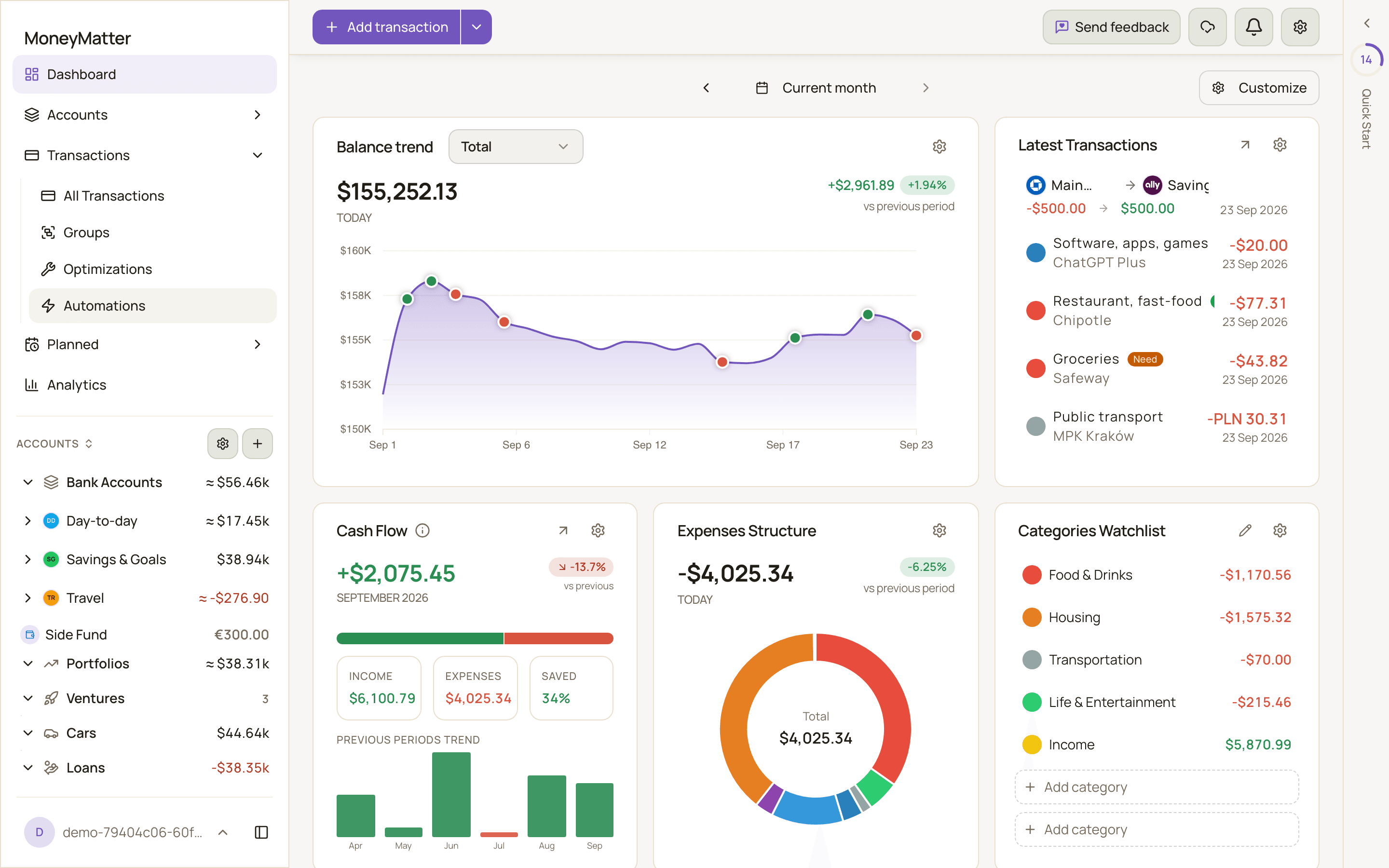
Section titled “Dashboard and analytics”The Dashboard is made of widgets you can add, remove and rearrange with Customize. They include Balance Trend, Spending by Categories, Cash Flow, Net Worth, Latest Records, Categories Watchlist and Credit Utilization. See Dashboard.
The Analytics section has deeper reports:
- Trends Comparison: compare spending, income and savings with the previous period.
- Cash Flow: income against expenses over time, and where the money went.
- Net Worth History: how your assets, liabilities and net worth changed over time.
- Pivot: break spending down by any dimension, lay it across time, and compare.
See Analytics reports. To understand exactly what goes into these numbers, read How stats are calculated.
Bring in your existing data
Section titled “Bring in your existing data”Under Settings → Import/Export, you can import transactions from a CSV file, an OFX or QFX bank statement, or almost any text such as a bank statement or an email. Importing from text uses AI. It’s included in the Plus plan, and on Essential it needs your own AI model. You can also move over from YNAB, Wallet (BudgetBakers) and Microsoft Money. See Import from CSV and Other import sources.
The same page lets you export your data, and you can download a backup of nearly all your data (attachments and bank connections aren’t included). See Backup and restore.
Also in MoneyMatter
Section titled “Also in MoneyMatter”These features aren’t covered in this help center yet:
- Budgets: set spending limits and follow how you’re doing against them.
- Recurring Payments: keep track of subscriptions, bills and regular income.
- Investments: portfolios with your holdings, transactions and performance.
- Loans and Venture deals, so your net worth includes them.
- Automations: rules that run on new transactions from bank sync and file imports.
- AI features: sort transactions into categories with AI, use your own AI model, and connect AI assistants to your MoneyMatter data.
- Household and account sharing: give people you trust access to your accounts.
- Open source: MoneyMatter’s code is public, and you can run your own copy.
On moneymatter.app, a new sign-up starts a free 40-day trial that includes almost every feature. The trial is tied to your email address, so signing up again with the same email doesn’t start a new one. After that, you choose the Essential or Plus plan to keep adding to your data. Read Plans and billing to compare them.
Next steps
Section titled “Next steps”- Quick start: create your account and add your first transaction.
- Key concepts: the ideas behind balances, transfers, refunds and stats.