
Create an account
An account is any place your money lives: a current account, a credit card, a cash wallet, a savings pot. Every transaction you record belongs to one account. This page shows how to create a manual account, which is one you keep up to date yourself by adding or importing transactions.
If you’d rather have your bank send transactions automatically, see bank connections. Bank connections are part of the Plus plan (see plans and billing).
Create a manual account
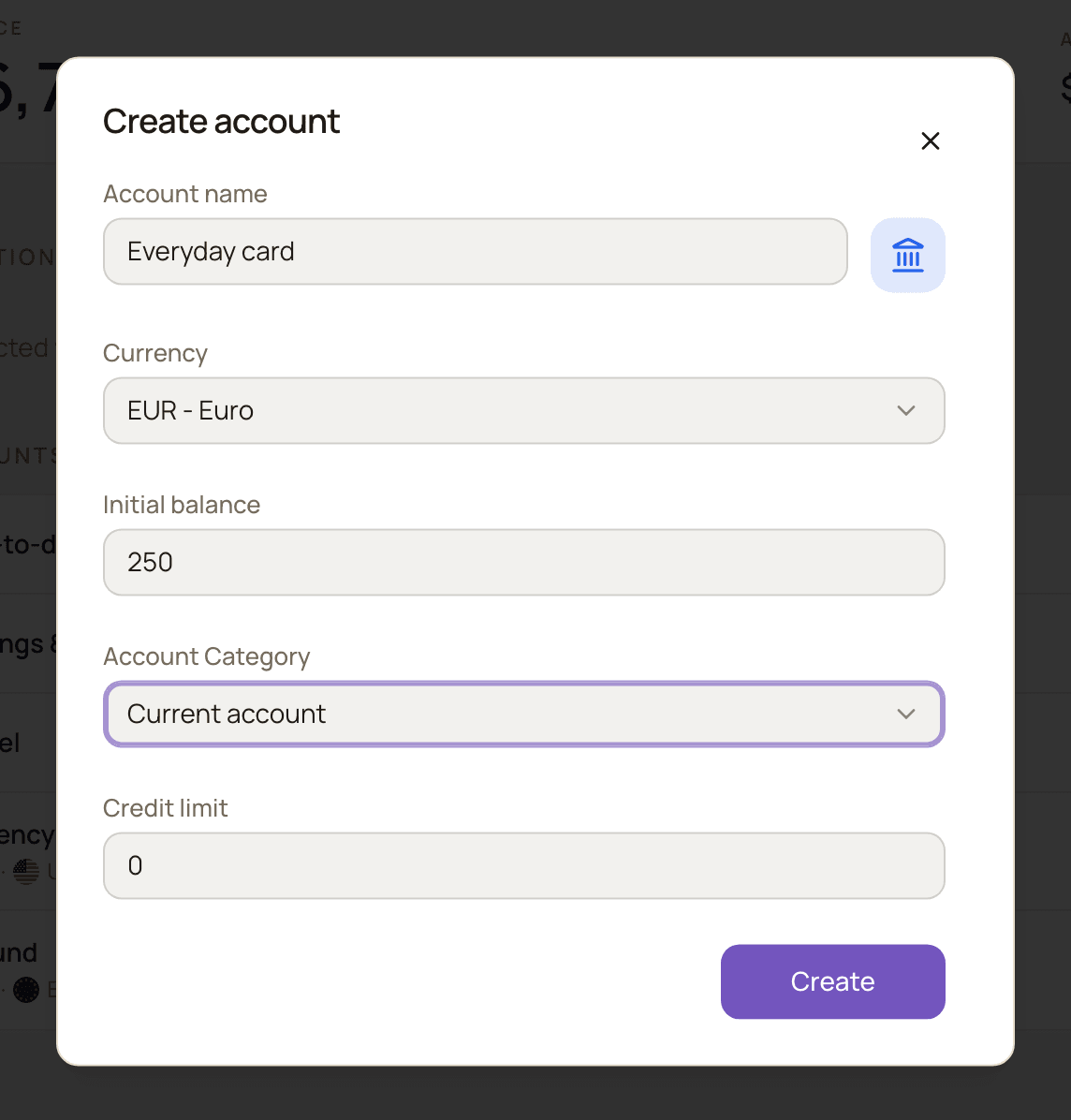
Section titled “Create a manual account”- In the sidebar, open Accounts → All Accounts.
- Click Create account at the top of the page. On a narrow screen, click the ⋮ button (Account actions) first, then Create account.
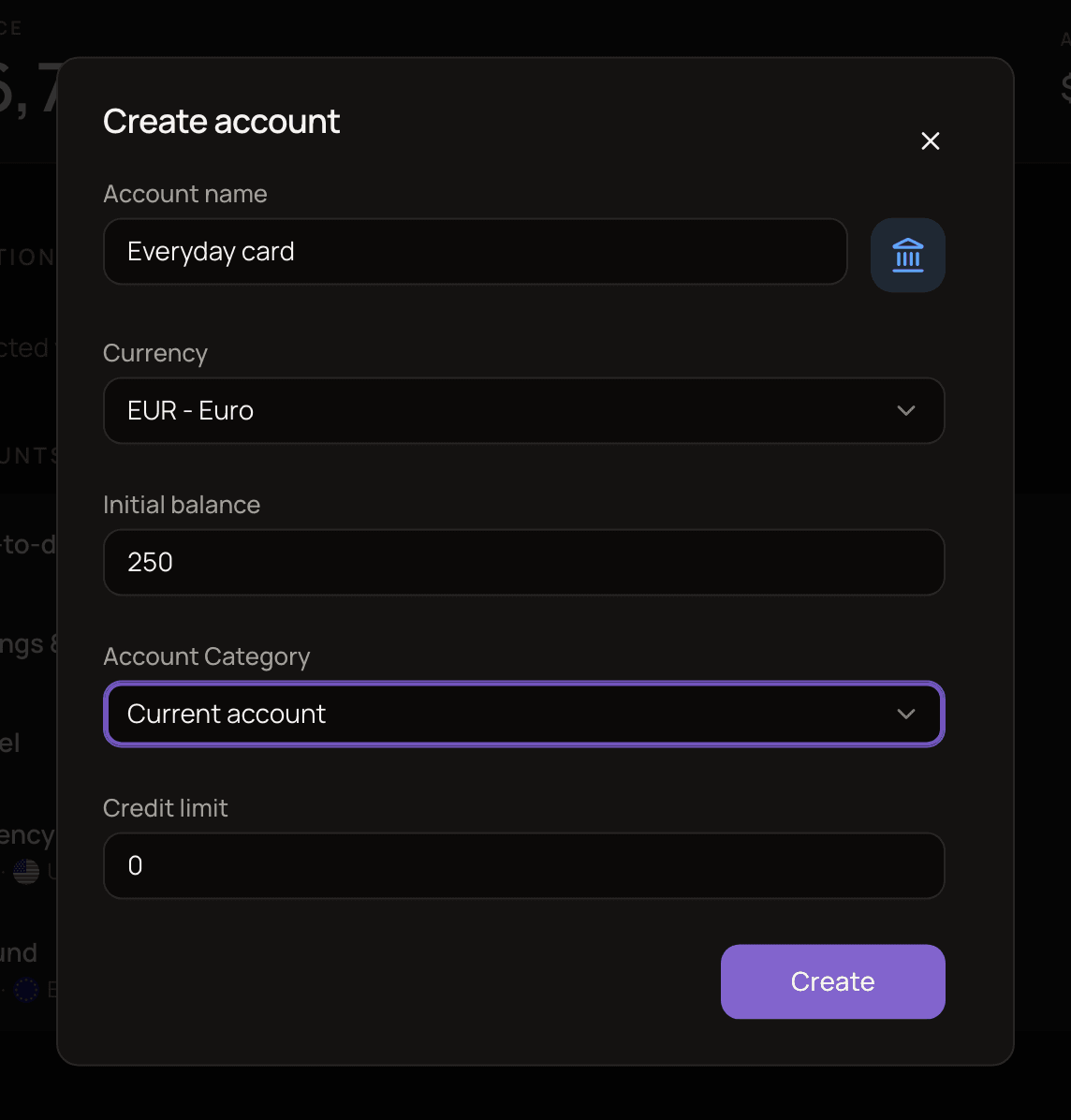
- Enter an Account name. You can also click the square next to the name to pick a logo (more on that below).
- Choose the Currency.
- Enter the Initial balance. Read choose the right initial balance first if you plan to add past transactions.
- Pick an Account Category.
- Leave Credit limit at 0 unless you know you need it (see credit limit).
- Click Create.
The new account appears in the sidebar and on the Accounts page right away.
Other ways to open the form
Section titled “Other ways to open the form”- In the sidebar, find the Accounts heading above your list of accounts (it has a gear and a + button). Click + and choose New account.
- If you have no accounts yet, the Accounts page shows a Create Manual Account button.
What each field means
Section titled “What each field means”Account name and logo
Section titled “Account name and logo”The Account name is how the account appears everywhere in the app. Pick something you’ll recognise at a glance, like “Revolut EUR” or “Wallet”.
The logo is optional. Click the square next to the name and choose:
- Brand to search for a company logo, such as your bank’s.
- Letters to use one or two letters on a colour you pick.
Without a logo, the account shows the icon of its category.
Currency
Section titled “Currency”The currency the account holds. The list only shows currencies you’ve already added. To use a new one, click Add new currency + at the bottom of the list, and it will be selected for you once it’s added. The field starts on your base currency.
Accounts in another currency still show up in your totals. MoneyMatter converts them into your base currency using the exchange rate. See base currency and currencies.
Initial balance
Section titled “Initial balance”How much money was in the account before the first transaction you record in MoneyMatter. It can be negative, for example −300 for a card you already owe 300 on.
From then on, MoneyMatter works out the balance for you:
Current balance = initial balance + money in − money out
Money in and out includes everything recorded on the account: income, expenses, transfers and balance adjustments. Every time you add, edit or delete a transaction on the account, the balance updates.
You can see the initial balance later on the account’s Details tab, but you can’t edit it yourself. An import may adjust it for you (see below). To correct a balance after the account exists, use Adjust balance.
Account Category
Section titled “Account Category”The category describes what kind of account this is. You can choose from:
- General (the default)
- Cash
- Current account
- Credit card
- Saving account
- Bonus
- Insurance
- Investment
- Overdraft
- Crypto
The category mostly sets the icon and the label shown in your account lists. It doesn’t change the balance or which transactions count. For example, choosing Credit card doesn’t turn on any credit features, and choosing Investment doesn’t create an investment portfolio. One exception: the Net Worth History report sorts debts by type, so a negative balance on a Credit card account counts as a Credit card liability, while on most other accounts it counts as Overdraft. You can change the category at any time.
Vehicles have their own form. See vehicles.
Credit limit
Section titled “Credit limit”For credit cards and overdrafts. Accounts with a credit limit show up in the Credit Utilization widget on the dashboard.
Some banks show a balance that already includes your credit line. For example, a card with a 1,000 EUR limit where you’ve spent 200 EUR shows a balance of 800 EUR. In that case, enter the credit line (1,000) here. When Include credit limits in balance is turned on in Settings → General (see general settings), MoneyMatter subtracts the limit and shows what you actually owe: −200 EUR.
If you track the card as the amount you owe (a negative balance), you can still enter the limit, but keep Include credit limits in balance off. Otherwise the limit is subtracted from your balance too, and a card at −200 EUR shows −1,200 EUR. See credit limits for the full picture.
The credit limit can’t be negative, and you can change it later.
Choose the right initial balance
Section titled “Choose the right initial balance”What to enter depends on how you’ll bring in your past transactions.
If you’ll add them by hand, enter what the account held before your first recorded transaction, not today’s balance. The balance is the initial balance plus every transaction, so each one you add moves it.
Say your bank shows 1,200 EUR today, and you’re about to add last month’s transactions: 800 EUR of spending and 500 EUR of income.
- If you enter 1,200 as the initial balance, those transactions move it to 900 EUR (1,200 − 800 + 500), which is wrong.
- Enter 1,500 instead (1,200 + 800 − 500). Once they’re added, the balance matches your bank: 1,200 EUR.
If you’ll import them, it depends on the Update account balances from imported transactions checkbox in the import:
- Off (the default): enter today’s balance, 1,200 EUR. The import keeps it and adjusts the initial balance for you.
- On: imported transactions move the balance, so enter the balance before the first transaction, 1,500 EUR, as above.
See how an import affects balances. Import from any Text Source has no such checkbox and always moves the balance, so treat it like adding transactions by hand. See other import sources.
Good to know
Section titled “Good to know”- You can’t edit the currency or initial balance yourself. Everything else can be changed: the name, logo, category and credit limit. An import may adjust the initial balance for you so your current balance stays the same. See how an import affects balances.
- Creating an account ticks off a task in the Quick Start checklist. See the Quick Start checklist.
- Keep accounts tidy with groups. You can put related accounts into account groups.