
Split a transaction
One supermarket receipt can cover food, cleaning supplies and a birthday present. A split lets you keep it as one transaction, matching your bank statement, while each part counts toward the right category.
How a split works
Section titled “How a split works”Every split transaction has a main category, the one in the Category field. You then add split rows, each with its own category and amount. The main category keeps whatever isn’t split off.
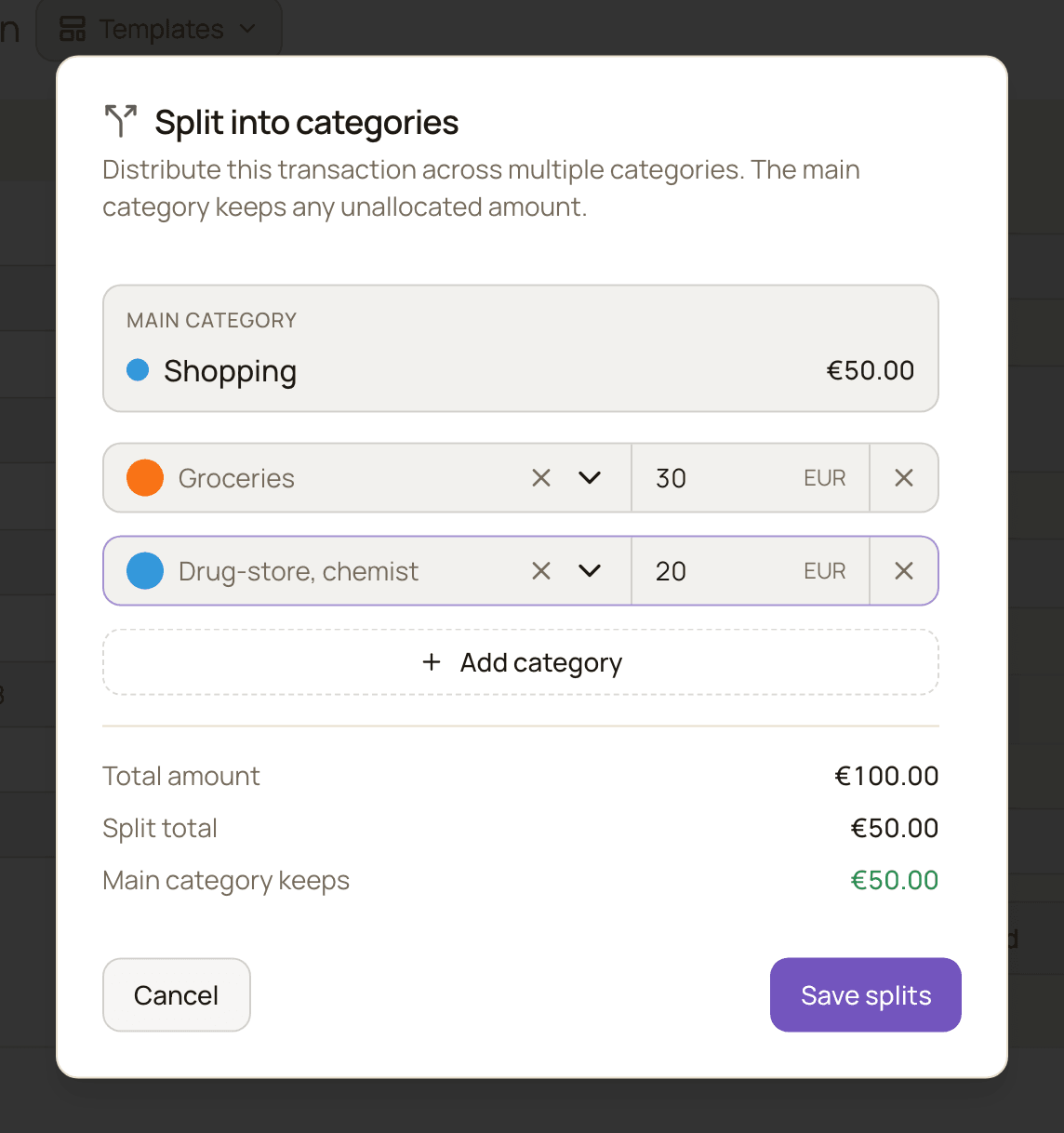
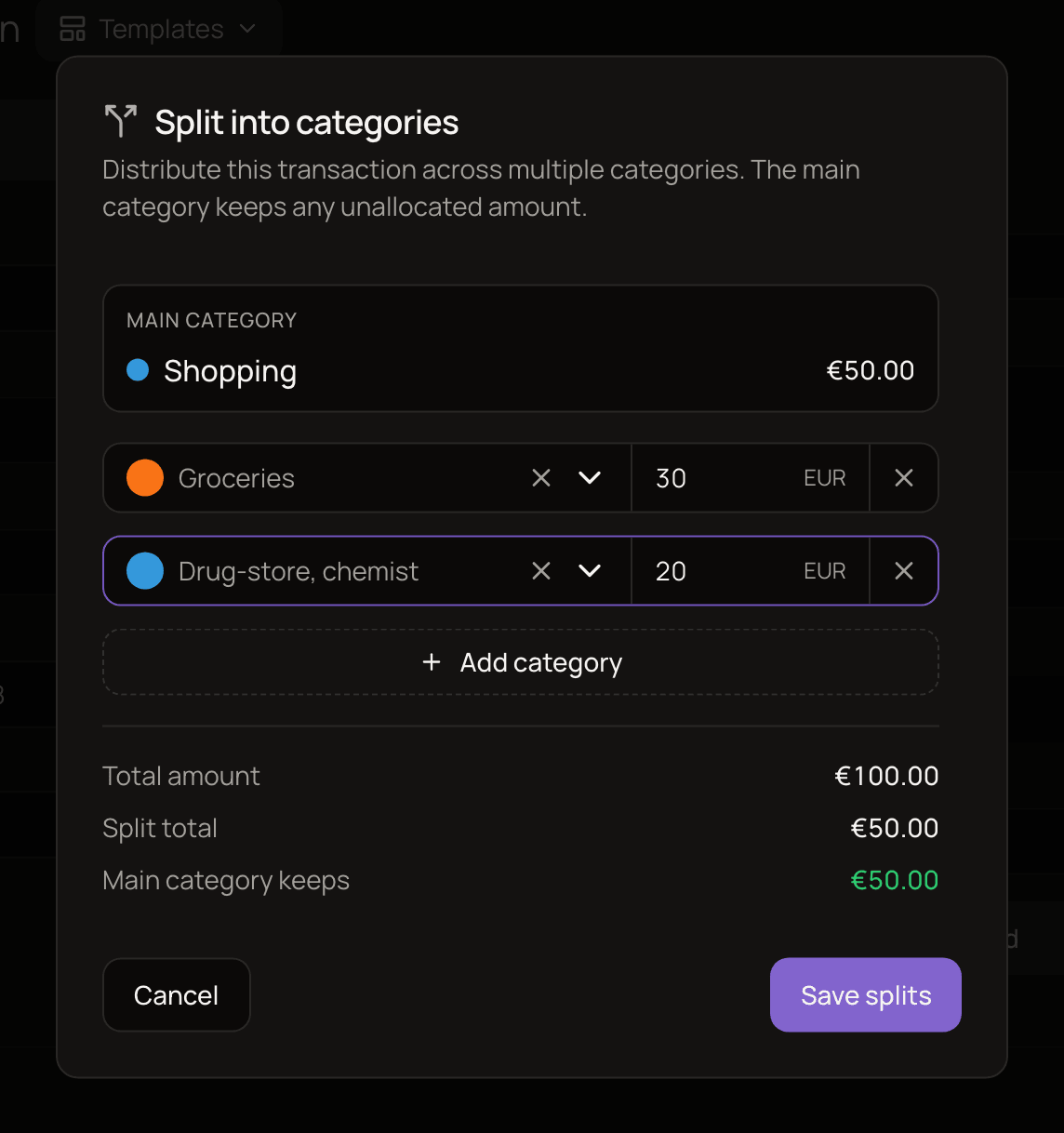
Say you spend 100 EUR at a supermarket, with Shopping as the main category, and split off:
- Groceries: 30 EUR
- Drug-store, chemist: 20 EUR
The transaction still shows as one 100 EUR expense, and your account balance drops by 100 EUR. In your stats it counts as:
| Category | Amount |
|---|---|
| Groceries | 30 EUR |
| Drug-store, chemist | 20 EUR |
| Shopping (main category) | 50 EUR |
Reports grouped by top-level category add each subcategory into its parent, so there Drug-store, chemist counts toward Shopping (70 EUR) and Groceries toward Food & Drinks (30 EUR).
So the split amounts don’t have to add up to the total. You only list the parts that belong somewhere else.
Split a transaction
Section titled “Split a transaction”- Open a new or existing expense or income.
- Enter the Amount and pick the main Category first. The split window works out what’s left from the amount.
- Click Split on the right of the Category field. The Split into categories window opens.
- In the first row, pick a category and enter its amount.
- Click Add category for each extra part.
- Check the summary at the bottom: Total amount, Split total and Main category keeps.
- Click Save splits.
- Click Create, or Edit if you’re changing an existing transaction (that’s the save button’s label). The splits aren’t saved until you do.
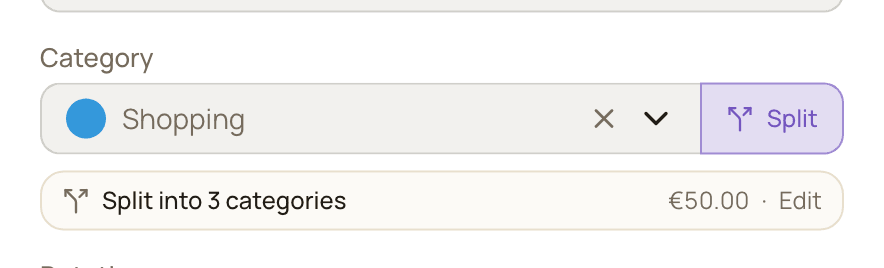
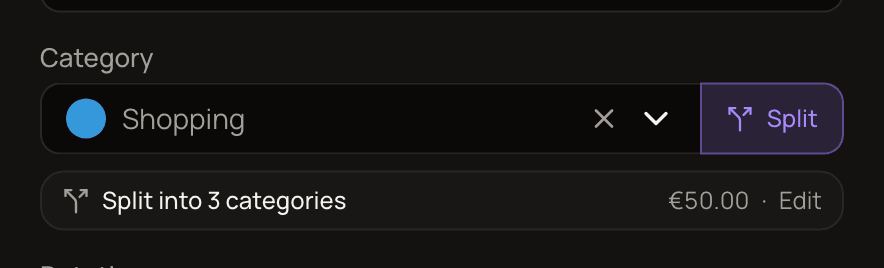
After saving the splits, the form shows Split into 3 categories under the Category field (the split rows plus the main category), along with the split total. Click it to change the splits.
Rules for split rows
Section titled “Rules for split rows”- Each amount must be more than zero.
- Together, the splits can’t be more than the transaction amount. The window shows Split amounts exceed transaction total and won’t let you save. Splits that add up to exactly the total are fine; the main category then keeps nothing.
- Each category can be used once. A repeat shows Duplicate category.
- The main category can’t be a split row. It already gets the remainder, so the window shows Cannot use main category in splits.
- Up to 10 split rows per transaction.
- Rows with no category or no amount are dropped when you save.
Change or remove splits
Section titled “Change or remove splits”To change splits, open the transaction, click the Split into … categories row under Category, adjust the rows, click Save splits, then save the transaction.
To remove all splits, open the same window and click Remove splits. The whole amount goes back to the main category once you save the transaction. To drop only one part, click Remove category on that row.
Deleting the transaction deletes its splits too.
How splits show up
Section titled “How splits show up”- In stats and reports, each split counts under its own category and the main category counts what’s left, as in the example above. See how stats are calculated.
- In the transaction list, a split transaction shows a split icon in list view. In table view, turn on the Split column in Table settings to see it.
- When you filter by category, a split transaction appears if its main category or any of its split categories matches. The whole transaction is listed, not only the matching part. See search and filter.
- In another currency, each split is converted to your base currency with the same exchange rate as the rest of the transaction, the one for its date.
Limits and side effects
Section titled “Limits and side effects”- Transfers can’t be split. A transfer moves money between your accounts, so it doesn’t belong to spending categories.
- Switching a split transaction to Transfer deletes its splits when you save, with no warning. For the same reason, a split transaction can’t be linked to another transaction as a transfer.
- Split transactions can’t be selected for bulk editing. Edit them one at a time.
- Tags, payee and note belong to the whole transaction. In the split window, each row only has a category and an amount.
- Bank-synced transactions can be split, even though their amount is locked.
Splits and refunds
Section titled “Splits and refunds”When you link a refund to a split transaction, you can choose which part it refunds: the main category or one of the splits. The refund then reduces that category in your stats. See refunds.
A few rules follow from that:
- You can’t lower a split’s amount below what’s already been refunded against it. Unlink the refund first if you need to.
- If you remove a split that has a refund linked to it, the refund is linked to the whole transaction instead.