
Base currency and currencies
You can keep accounts in as many currencies as you like. To add them all up, MoneyMatter converts everything into one currency, your base currency. This page explains what the base currency affects, where exchange rates come from, and what to think about before you change it.
What the base currency is used for
Section titled “What the base currency is used for”You choose your base currency when you sign up, on the Select Base Currency screen. Pick the one you use most often, because every total in the app is shown in it:
- the dashboard, stats and reports
- account group totals in the sidebar
Some things always stay in their own currency:
- Account balances. Each account in the sidebar shows its balance in the account’s own currency.
- Transaction amounts. A transaction always keeps the amount you entered, in its account’s currency.
How a transaction gets its base-currency amount
Section titled “How a transaction gets its base-currency amount”When you add a transaction in another currency, MoneyMatter converts it with the exchange rate for the transaction’s date and saves the converted amount next to the original. Your stats count the converted amount.
For example, your base currency is EUR and you pay 50 USD on 3 March. If 1 USD was worth 0.92 EUR that day, the transaction is saved as 50 USD with a base amount of 46 EUR.
The converted amount is saved once and kept, so your past spending and income don’t shift when rates move later. Last month’s report shows the same numbers today as it did last month.
When you edit and save a transaction in another currency, its base amount is worked out again with the rate for its date.
On the transactions page, switch to Table view to see the Base amount column with each transaction’s converted value. You can hide it in Table settings.
Open the Currencies page
Section titled “Open the Currencies page”- Click the gear button (Settings) at the top right of the app.
- Under Workspace, choose Currencies.
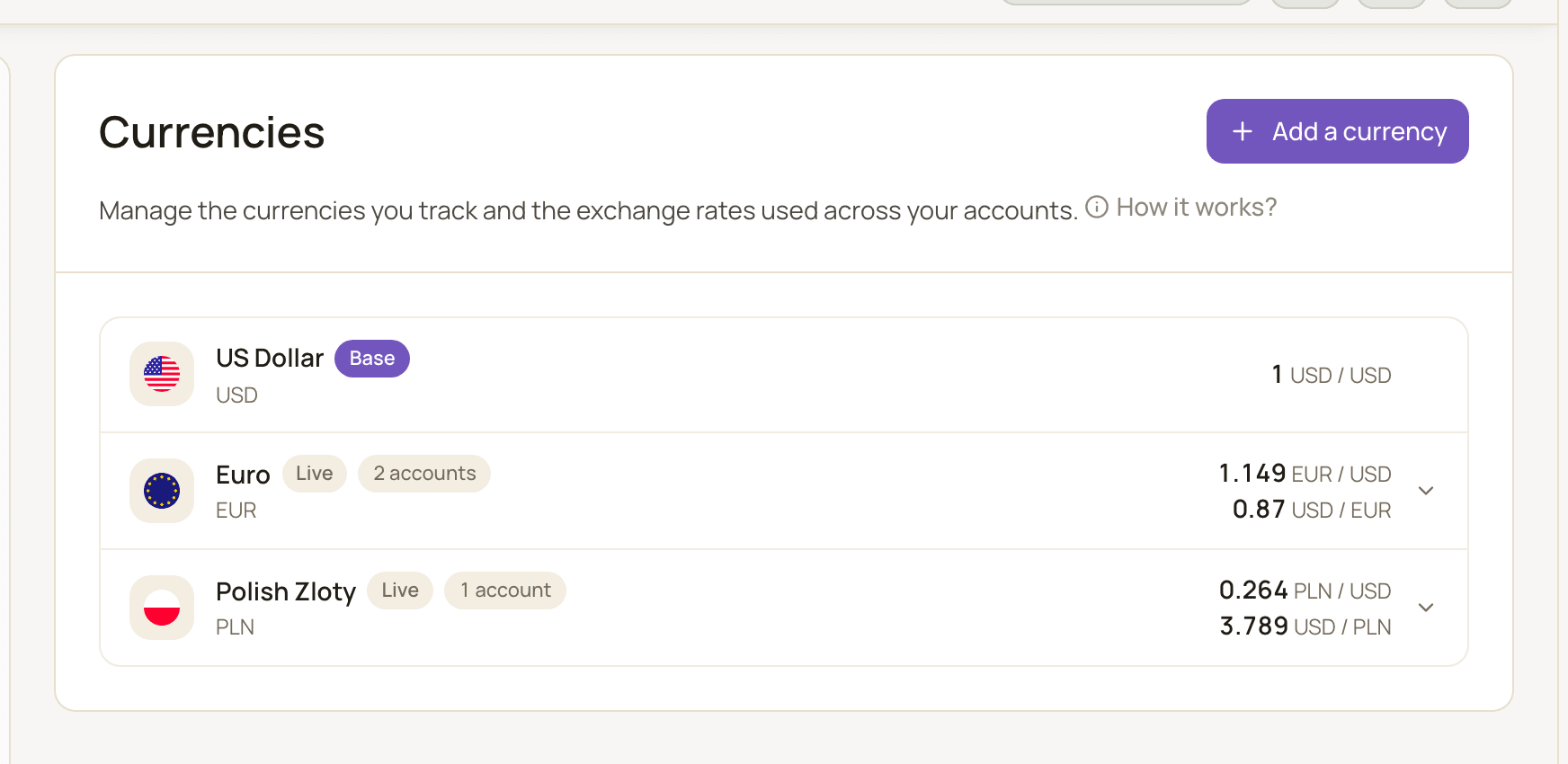
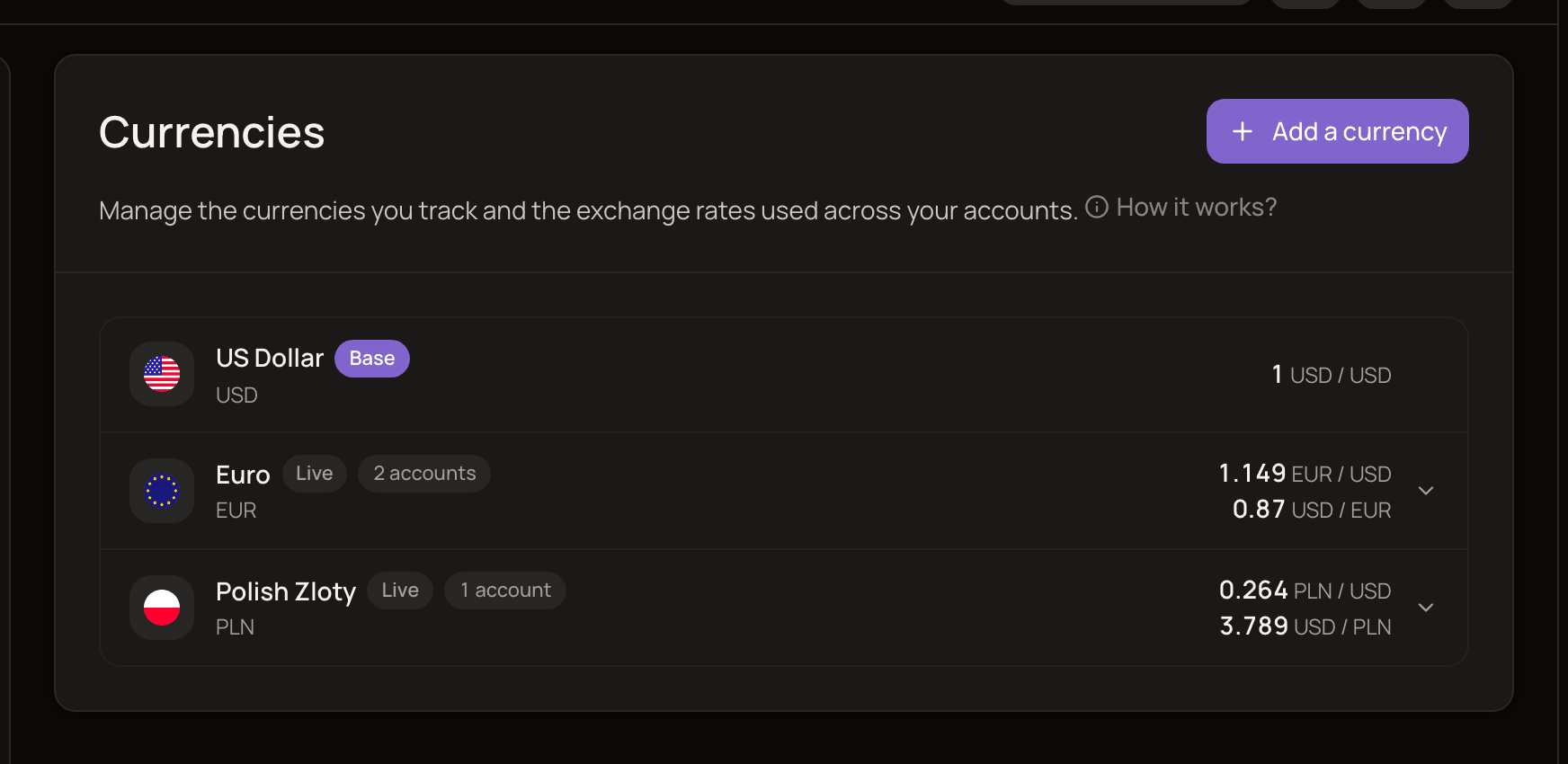
Your base currency is always first in the list, with a Base badge. Every other currency shows today’s exchange rate in both directions, plus two badges:
- Live or Custom: whether the currency uses market rates or a rate you set yourself.
- The number of accounts that use it, or Unused if none do.
Click How it works? at the top of the page for a short reminder of how this all fits together.
Add a currency
Section titled “Add a currency”- On the Currencies page, click Add a currency.
- Search for the currency in the Select currency field and pick it. Currencies you already have aren’t listed.
- Click Add.
You can also add a currency while creating an account. The Currency field only lists your currencies, so scroll to the bottom of its list and click Add new currency +.
When a bank connection or an import creates an account in a currency you don’t have yet, that currency is added to your list automatically.
Where exchange rates come from
Section titled “Where exchange rates come from”MoneyMatter uses market exchange rates and updates them once a day, at 18:00 UTC. That’s after the European Central Bank publishes its daily rates.
Each daily update also refreshes how much your foreign-currency accounts are worth in your base currency. So on balance charts, a USD account’s value in EUR moves with the exchange rate, even when you haven’t added any transactions.
- Past dates: if you add a transaction for a date MoneyMatter doesn’t have a rate for yet, it fetches the rate for that date.
- No rate for that exact day (for example, a date in the future): the most recent rate available is used.
Set a custom exchange rate
Section titled “Set a custom exchange rate”If you’d rather use your own rate, for example the one your bank actually charged you, you can replace the market rate for any currency except your base currency.
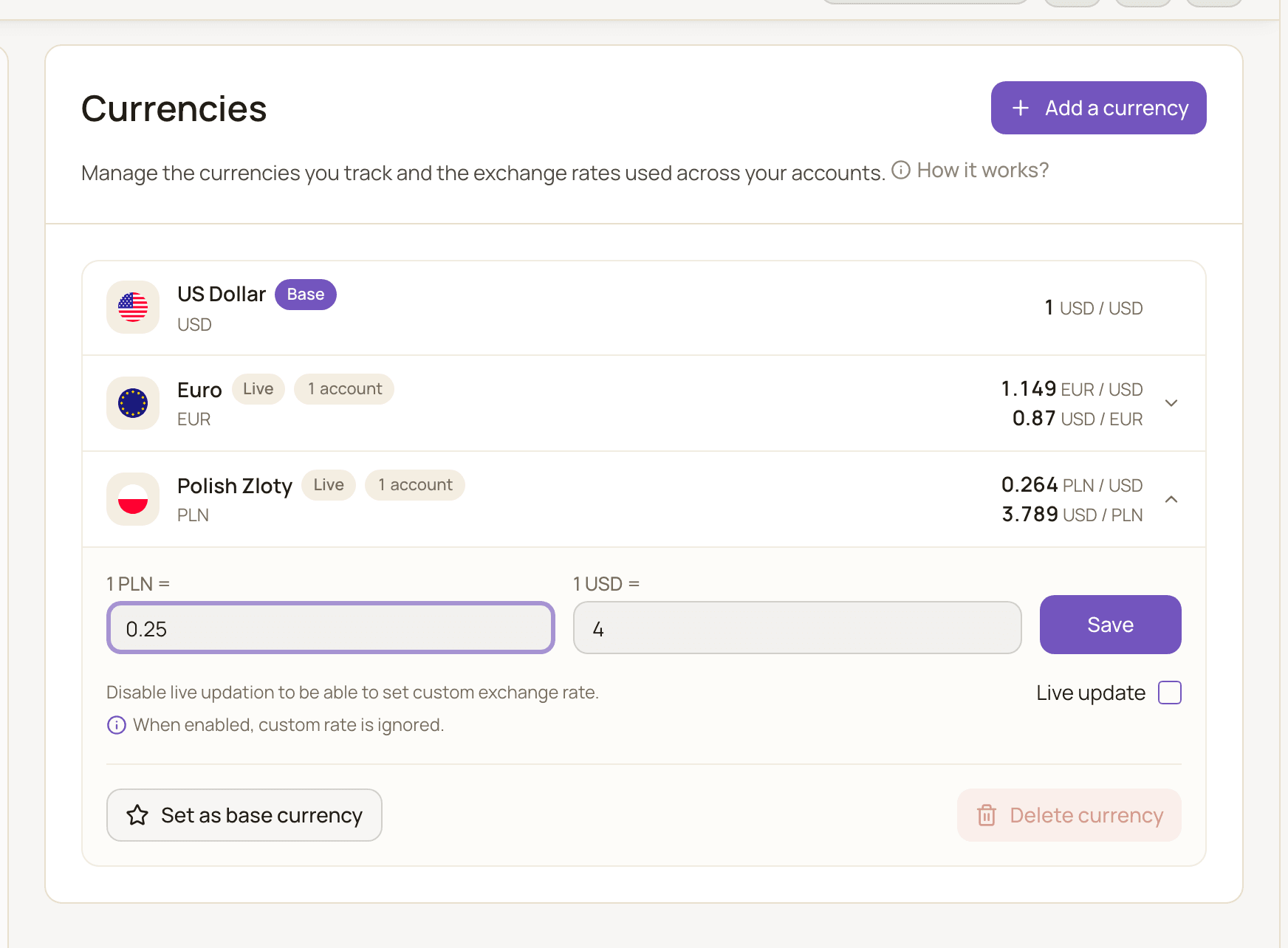
- On the Currencies page, click the currency’s row to expand it.
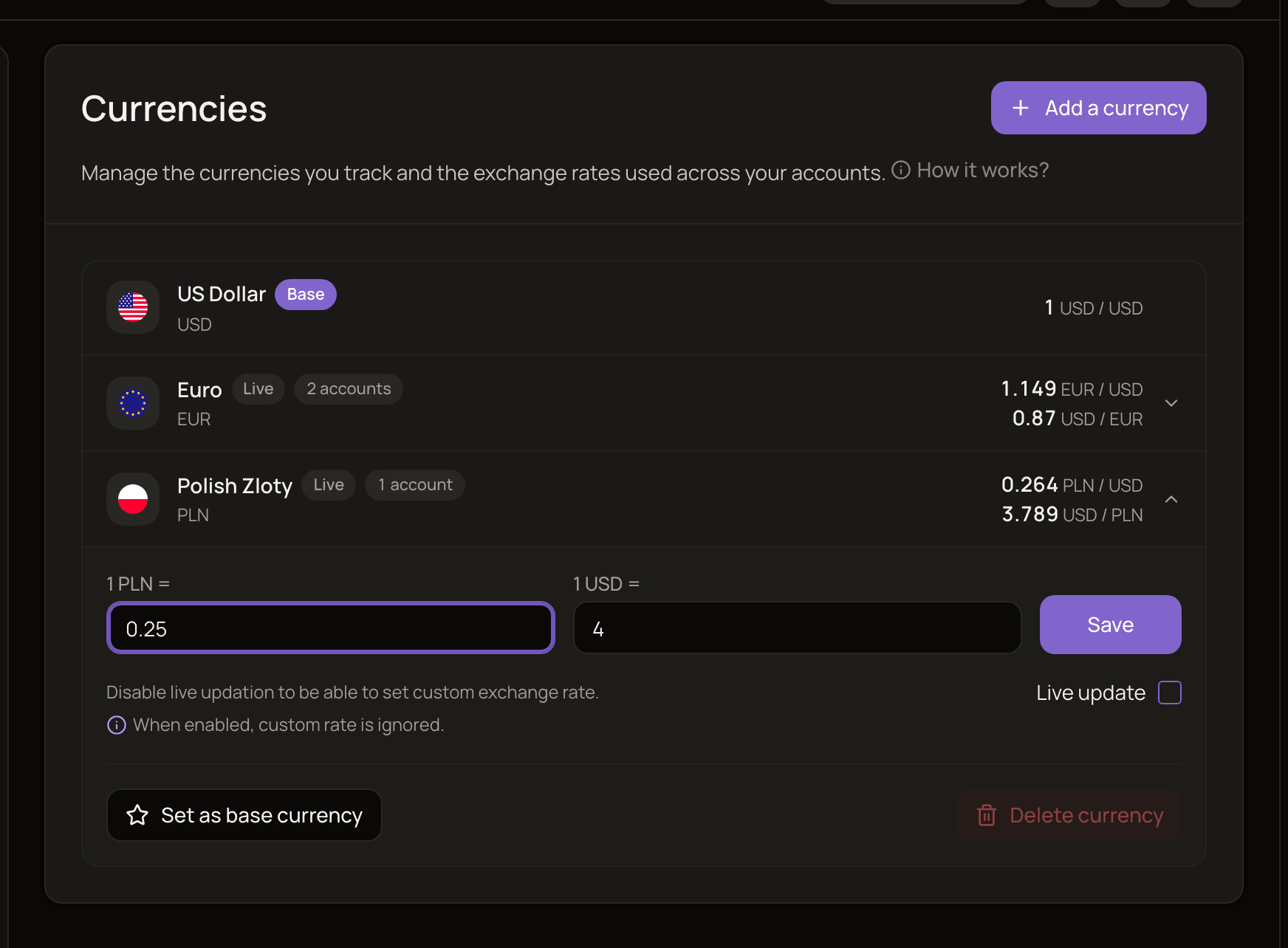
- Uncheck Live update. The two rate fields become editable and a Save button appears.
- Type the rate in either field: 1 USD = (how many EUR one dollar buys) or 1 EUR =. The other fills in automatically.
- Click Save.
The row now shows a Custom badge. Rates must be greater than zero.
In a narrow window, the row’s buttons read Delete and Set as base instead of Delete currency and Set as base currency.
To go back to market rates, expand the row, check Live update again and click Save. Your custom rate is removed and the row shows Live again.
What a custom rate changes
Section titled “What a custom rate changes”| Uses the custom rate? | |
|---|---|
| Current balances of accounts in that currency, converted to your base currency | Yes, straight away |
| Balance history of manually tracked accounts in that currency | Yes, the whole history is redrawn at the custom rate |
| New transactions, and transactions you edit and save | Yes, whatever their date |
| Transactions you already saved | No. Their base amounts stay as they were |
That last row is on purpose: your past spending and income reports stay stable when you change a rate.
Delete a currency
Section titled “Delete a currency”- On the Currencies page, expand the currency’s row.
- Click Delete currency.
- Confirm in the Delete currency? dialog.
You can only delete a currency that no account uses. While any account is still in that currency, the button is turned off. This includes archived accounts. An account’s currency can’t be changed, so delete every account that uses it first. A currency used by an investment can’t be deleted either: you’ll see an error when you confirm. Your base currency can’t be deleted.
Change your base currency
Section titled “Change your base currency”Changing your base currency recalculates every converted amount in your account. It’s safe, but it’s a big operation, so ideally you do it once.
- On the Currencies page, add the new currency if it isn’t in your list yet.
- Expand its row and click Set as base currency.
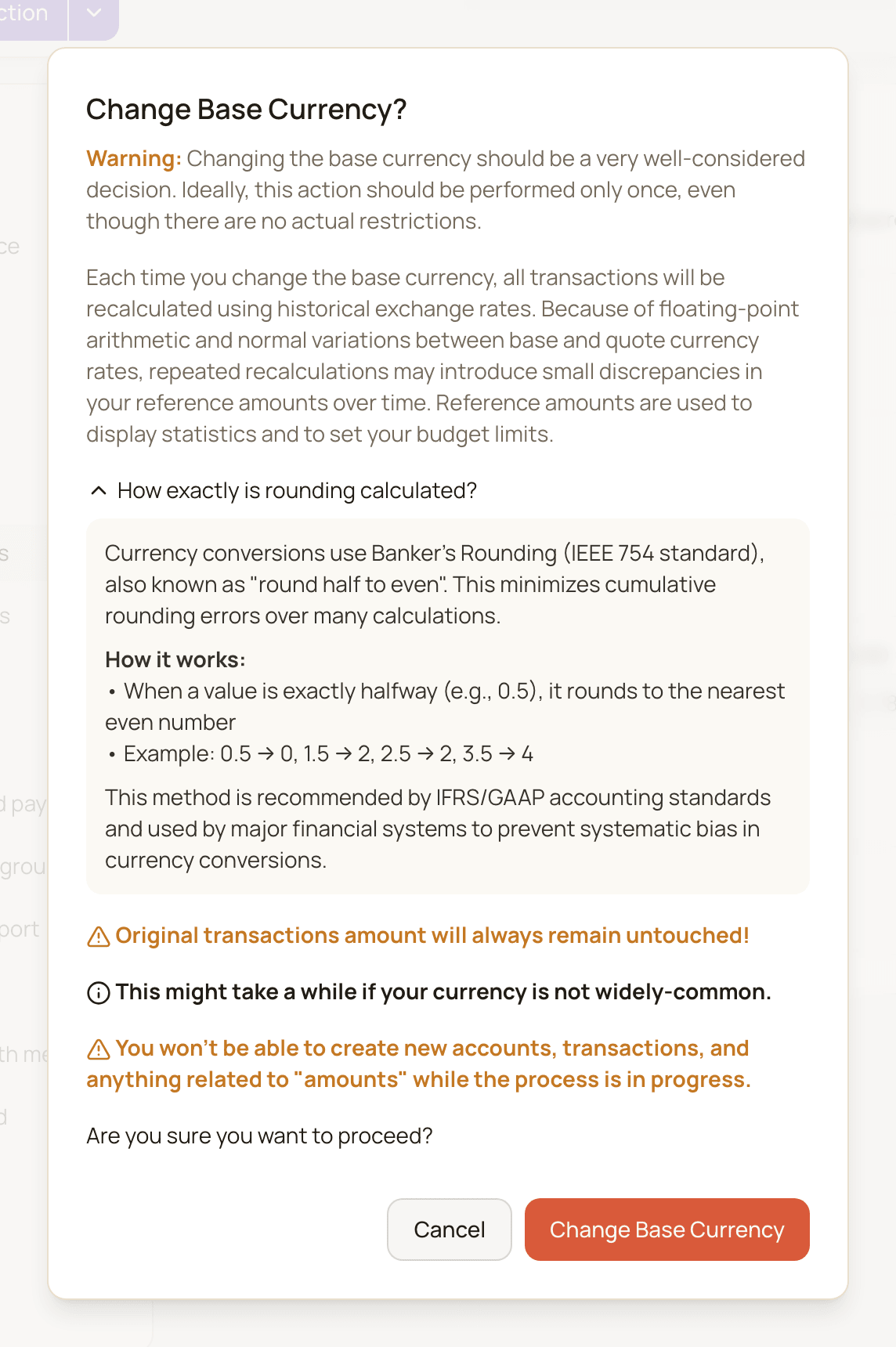
- Read the Change Base Currency? dialog, then click Change Base Currency.
What gets recalculated
Section titled “What gets recalculated”- Every transaction gets a new base amount, using the market exchange rate for its own date.
- Account balances and credit limits are converted at today’s rate.
- Balance history is rebuilt in the new base currency.
- The new currency gets the Base badge. Your old base currency stays in your list as a regular currency.
The original amounts of your transactions are never touched. Only the converted amounts change.
While it runs
Section titled “While it runs”The change runs in the background and can take a few minutes. It may take longer for currencies that aren’t widely used.
- A Changing your base currency screen covers the app and shows each step as it finishes. Keep the tab open.
- You can’t add or change anything that involves amounts until it’s done, such as accounts or transactions. This applies on all your devices.
- When the change finishes, the app reloads with everything in the new currency.
If something goes wrong, you’ll see Base currency change failed. Your transactions and balances are recalculated all at once, so you never end up with only some of them converted. A failed change isn’t retried automatically. Click Dismiss to close it. Nothing was converted, so you can try again from the Currencies page.
If you share accounts with other people or belong to a household, you can’t change your base currency until you stop sharing. The error message tells you what to do.
Good to know
Section titled “Good to know”- Balances and spending can use different rates for the same period. Transactions keep the rate from their own date. Account balances are re-valued every day at the current rate. So a balance chart and a spending report for the same month can convert USD at different rates. Both are correct for what they measure.
- In read-only mode you can’t add or delete currencies, save rates or change your base currency. See read-only mode.