
Tags
A category says what a transaction was. A tag adds any other angle you care about: a trip, a project, whether a purchase was a need or a want. A transaction has one category but can have up to 20 tags, and the same tag can sit on transactions from any category.
For example, tag your flights, hotel and restaurant bills with “Rome 2026” to see what the whole trip cost, while each still counts under its own category.
The tags you start with
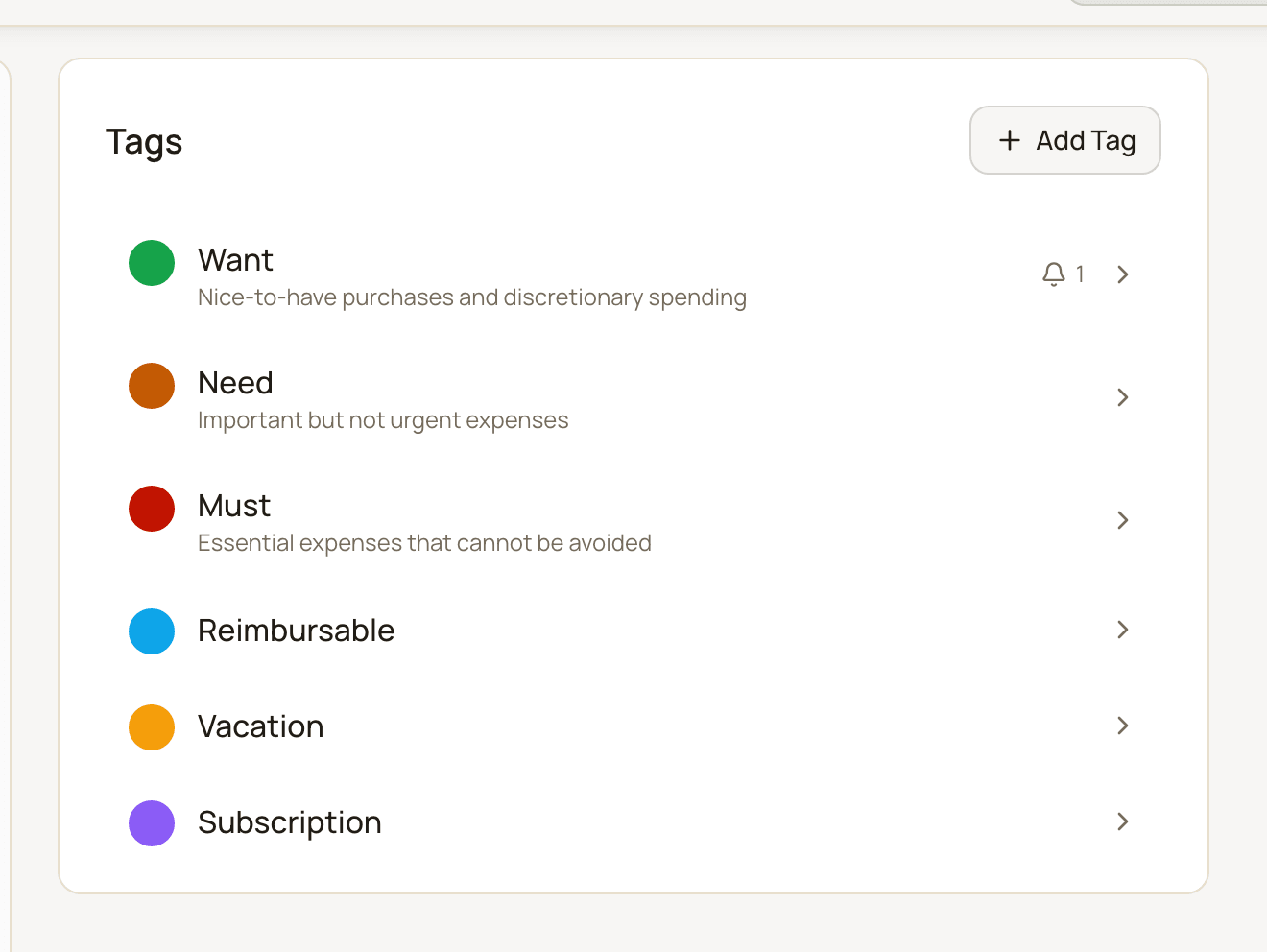
Section titled “The tags you start with”New accounts come with three tags to help you judge your spending:
- Want: nice-to-have purchases and discretionary spending.
- Need: important but not urgent expenses.
- Must: essential expenses that cannot be avoided.
Rename, change or delete them like any other tag.
Open your tags
Section titled “Open your tags”- Click the gear button (Settings) at the top right of the app.
- Under Workspace, choose Tags.
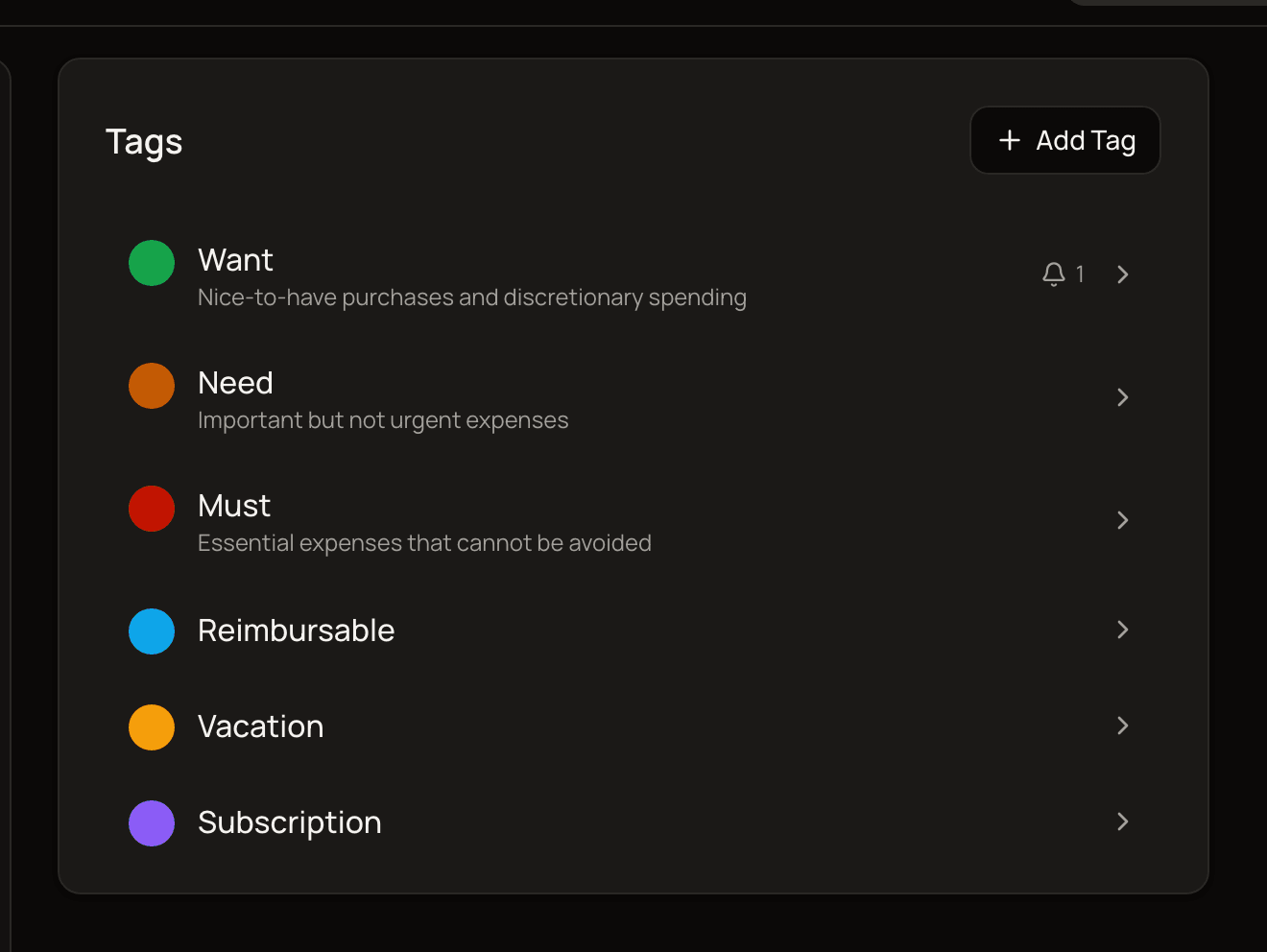
Each tag shows its color, icon, name and description. A bell with a number means the tag has reminders.
Create a tag
Section titled “Create a tag”- On the Tags page, click Add Tag.
- Enter a Name (up to 100 characters). Each tag name must be unique.
- Pick a Color and, if you like, an Icon.
- Optionally add a Description (up to 500 characters), to remind yourself what the tag is for.
- Check the preview and click Save.
Tag a transaction
Section titled “Tag a transaction”In the transaction form, open More options and pick one or more tags in Tags. See add and edit transactions.
A few other ways tags get added:
- From a payee. Tags set as a payee’s Auto-apply tags are added when you pick that payee, and to new bank-synced and imported transactions linked to it. See payees.
- In bulk. Select several transactions and use Edit to add, replace or remove tags on all of them. See edit several transactions at once.
You can’t create a new tag from the transaction form. Create it on the Tags page first.
Find tagged transactions
Section titled “Find tagged transactions”On the All Transactions page, use the Tags filter. It shows transactions that have any of the tags you pick. Choose No tags to find transactions without a tag. See search and filter.
Edit or delete a tag
Section titled “Edit or delete a tag”Click a tag in the list to open Edit Tag. Change what you need and click Save.
To delete it, click Delete in the same window and confirm. The tag is removed from every transaction that had it; the transactions themselves stay. This can’t be undone.
Tag reminders
Section titled “Tag reminders”A reminder lets MoneyMatter keep an eye on a tag for you, for example to warn you when “Eating out” goes over 200 EUR in a month.
Add a reminder
Section titled “Add a reminder”- On the Tags page, click the tag to open Edit Tag.
- Open the Reminders tab. (It only appears for a tag that’s already saved.)
- Click Add Reminder.
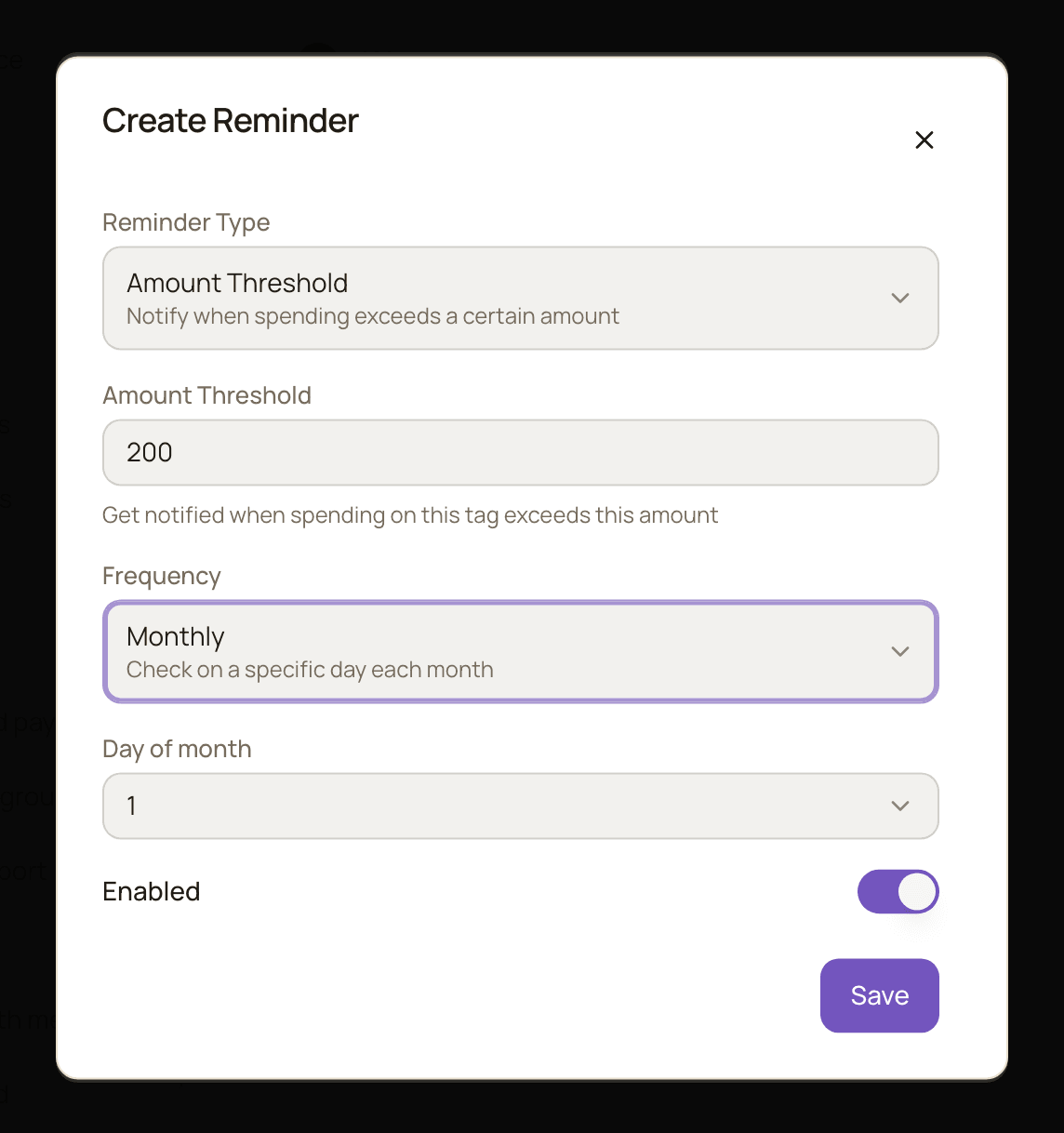
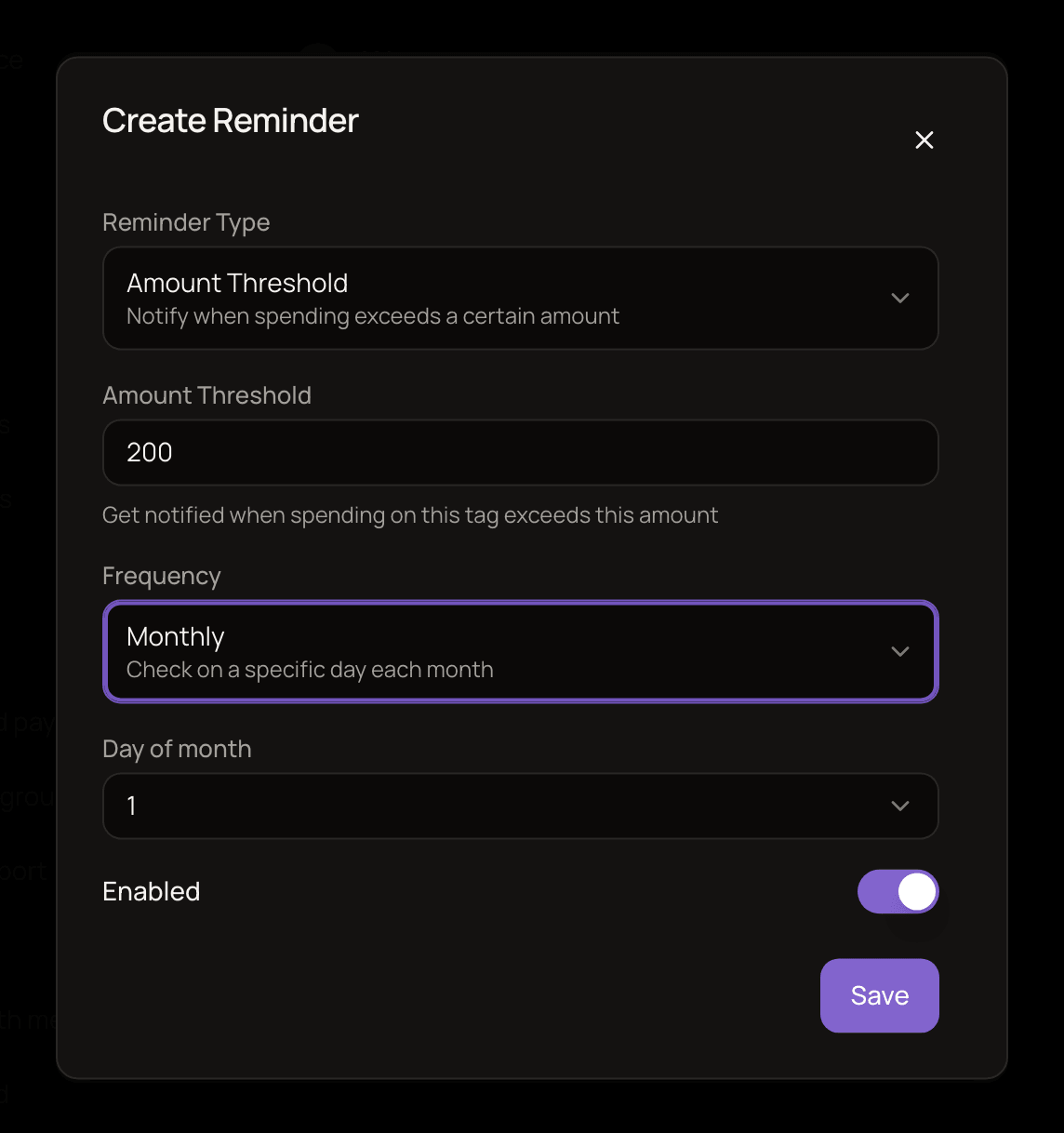
- Choose the Reminder Type:
- Amount Threshold notifies you when the total for this tag goes over an amount you set. Enter it in Amount Threshold, in your base currency.
- Activity Check notifies you when there are transactions with this tag.
- Choose the Frequency (see below). For Monthly, Quarterly and Yearly, also pick the Day of month.
- Leave Enabled on and click Save.
How often reminders check
Section titled “How often reminders check”| Frequency | When it checks | Period it looks at |
|---|---|---|
| Immediate | Shortly after a transaction gets the tag, at most once every 24 hours | The current month so far |
| Daily | Every day | Yesterday and today |
| Weekly | Every Monday | The last 7 days |
| Monthly | On the day of the month you pick | The last month |
| Quarterly | On your chosen day in January, April, July and October | The last 3 months |
| Yearly | On your chosen day in January | The last year |
If you pick a day that a month doesn’t have, such as the 31st, the last day of that month is used.
An Amount Threshold reminder adds up every transaction with the tag in that period, converted to your base currency, and compares the total with your threshold. Every tagged transaction counts toward the total, including income, refunds and transfers, so keep the tag on expenses only if you want a pure spending limit. An Activity Check only counts transactions dated after it last notified you, so it doesn’t repeat itself.
Where reminders show up
Section titled “Where reminders show up”When a reminder fires, you get an in-app notification. Open it from the bell (Notifications) in the header at the top of the app. A threshold reminder is titled Tag Spending Alert and says how much you spent against your threshold; an activity check is titled Tag Activity Summary.
To pause a reminder without deleting it, edit it and turn off Enabled. The list shows each reminder as Enabled or Disabled.
You can have up to 50 reminders in total, and a tag can’t have two identical reminders.